How to Fix Missing Maison Margiela QC Entry on Fashionreps
If you can't find the QC entry on a Maison Margiela product page on Fashionreps, don't place an order or keep refreshing. This issue may stem from differences between the catalog page and the product detail page, missing QC photos for specific variants, image loading failures, or incomplete page information. This article only addresses the problem of "can't find the QC entry," aiming to help you determine whether the
Editor score 4.2 / 5
Reading contents
If you can't find the QC entry on a Maison Margiela product page on Fashionreps, don't place an order or keep refreshing. This issue may stem from differences between the catalog page and the product detail page, missing QC photos for specific variants, image loading failures, or incomplete page information. This article only addresses the problem of "can't find the QC entry," aiming to help you determine whether the current product can still be verified and when to stop. 🔎

Verification date: October 19, 2026. Page prices, inventory, images, and link status may change; reopen the page to confirm before proceeding.
Clarify the Specific Issue of Missing Maison Margiela QC Entry
Common symptoms include:
- The product appears in the brand catalog, but the detail page lacks a "View QC Photos" button.
- The button exists, but clicking it shows no images, popups, or preview content.
- Only some colors or sizes show QC; the currently selected variant does not.
- The page redirects to the brand catalog after entering from search results, making it impossible to confirm the corresponding product.
Fashionreps' brand page states that the platform is for discovering products and available QC photos, with actual orders, payments, and logistics handled by external shopping agents. Therefore, seeing a product name in the catalog does not guarantee that every product or variant has available QC photos. ⚠️
Relocate the Target Product from the Fashionreps Catalog
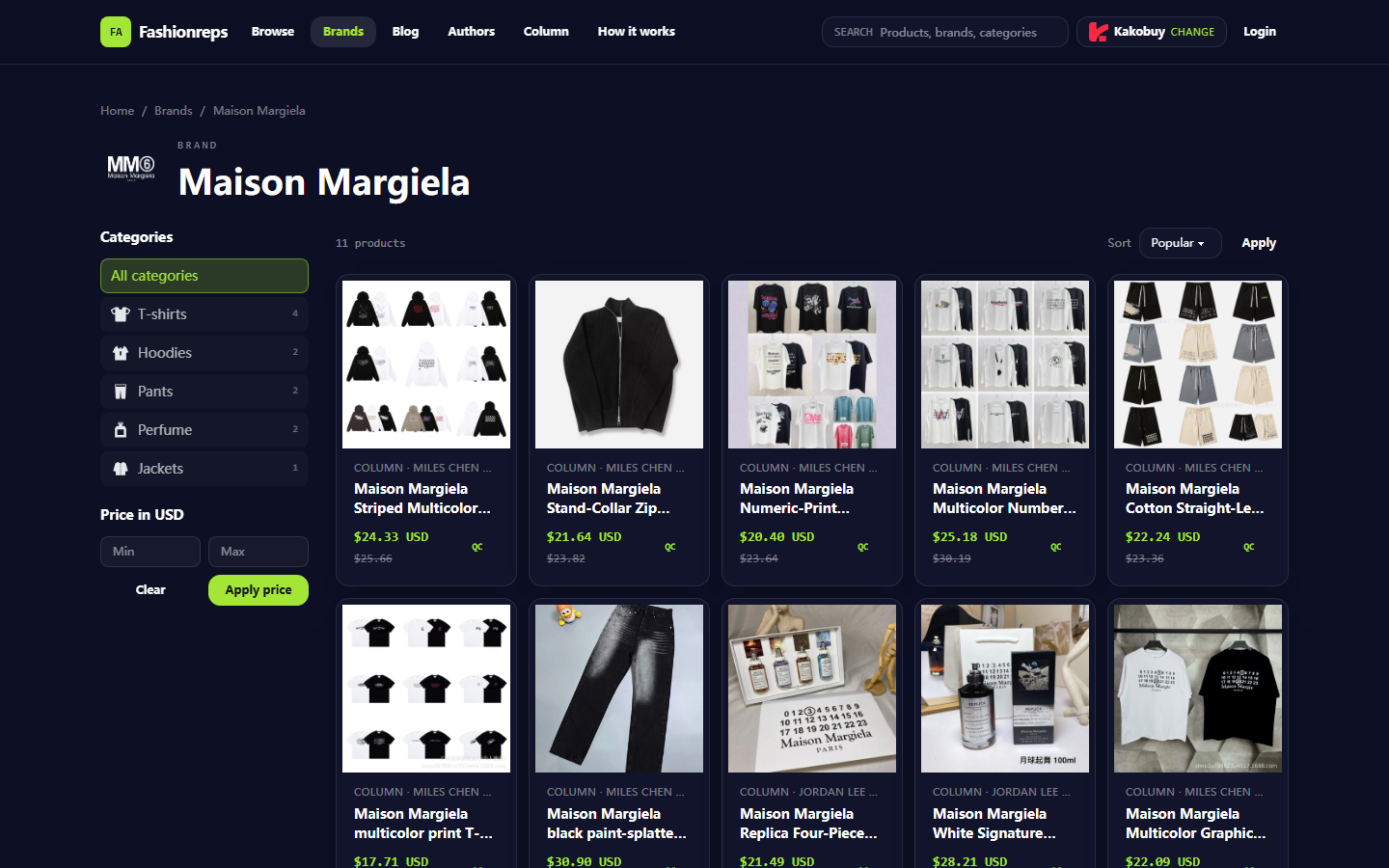
Start from the Maison Margiela brand catalog rather than relying only on browser history or external search results. Page records show that the catalog listed 11 products at the time, including T-shirts, hoodies, pants, jackets, and fragrances. Catalog quantity and sorting are dynamic; refer to the reopened page for current information.
Follow this order to locate the product:
- Record the full product name, not just the Maison Margiela brand name.
- Note the product category, reference price displayed, and visible size or color information.
- Click the product card to enter the detail page and confirm that the URL and product name match.
- If the catalog has filters or sorting, clear them and search again to avoid mistaking hidden variants for missing products.
Do not select a different product based on a similar title. Clothing, fragrances, and sets under the same brand may correspond to different sellers, variants, and verification materials.
Check the Product Detail Page, Variants, and Current Page Status
After entering the detail page, first check the product title, category, price, size, color, and page update time. The QC entry may only appear after selecting a specific color or size, so switch through all available variants and record which ones show the entry.
If the product page shows only the title and price without images, seller information, or an actionable purchase entry, the page information is insufficient. In this case, do not treat the reference price on the catalog card as the final transaction price, nor infer inventory or QC status from it.
Check the View QC Photos Button and Image Loading Conditions
Once you find "View QC Photos," check sequentially:
- Whether an image container or popup appears after clicking.
- Whether images are still loading and you need to wait for the page to finish loading.
- Whether the browser is blocking popups, scripts, or mixed content.
- Whether the button and image status are consistent after switching networks or reopening the page.
- Whether the images belong to the current product and variant, not cached content from a previous product.
If the button opens but the image area is empty, copy the page name, variant, and verification time, then close and re-enter the detail page. Do not submit purchase requests repeatedly or create orders repeatedly just because images haven't loaded. 🧾
Distinguish Temporary Display Glitches, Missing QC for the Product, and Insufficient Page Information
| Symptom | More Reliable Judgment | Next Step |
|---|---|---|
| Button exists, and images display normally after re-entering | Likely a temporary loading glitch | Save product and variant info, then re-verify |
| Only some variants have the button | QC may be provided per variant | Continue verifying only variants with clear images |
| No button after multiple re-entries | QC may not be provided or the page lacks the entry | Pause ordering and contact official support |
| Product title, variants, or images do not match | Insufficient information | Do not substitute with a similar product |
The above judgments are not a claim of a current system failure on Fashionreps. Without repeatable, saved page evidence, do not assert that the target site is malfunctioning.
Save Page, Variant, and Time Evidence
Before proceeding, save the following:
- Full product title and detail page URL; the system will process links after saving.
- Current color, size, or other variant.
- Displayed price and visible inventory notes.
- Whether the QC button exists, the result after clicking, and the verification time.
- Page screenshots with account numbers, order numbers, addresses, and payment information covered.
Screenshots only prove the page state at the time of capture, not that inventory, prices, or images remain valid later. Do not upload information containing complete orders, passports, payment cards, or shipping labels. 🔐
When to Contact Official Support and What Information to Submit
Submit a read-only verification request through Fashionreps' official contact channels in the following situations:
- The product detail page opens, but the QC entry is consistently missing from the expected location.
- The QC button repeatedly opens blank, and this persists after re-entering the page.
- Product title, variants, and QC images appear mismatched.
- The catalog product exists, but the detail page fails to load completely.
Your submission should include the full product name, detail page URL, variant, verification time, browser errors or screenshots, and the single question you want officially confirmed. Do not send passwords, payment information, complete order numbers, or other unrelated personal data.
Action Checklist: Stop Ordering or Continue Verification
Conditions to continue verification:
- Product detail page matches the catalog name.
- Current variant is clearly identifiable.
- QC entry opens reliably and images correspond to the product and variant.
- Price, inventory, and page status have been reconfirmed on the same day.
Conditions to stop:
- Cannot confirm which product or variant the current page corresponds to.
- QC entry disappears and does not return after re-entering.
- Images are empty, mismatched, or cannot be confirmed as belonging to the current variant.
- Key information can only be supplemented by catalog titles or third-party relay.
Do not pay, submit orders, or ask external agents to guess product information until the QC entry is restored and the corresponding variant is verified. This may save you the time of repeated communication or order cancellation, but the trade-off is a delay in purchase; for situations where product status cannot be confirmed, pausing is usually more appropriate than continuing to order. ✅